Set up parental controls on a Nintendo Switch 2 / Nintendo Switch
Take control
Before you start using your Nintendo Switch 2 or Nintendo Switch in the family it’s important that you set it up correctly. This not only ensures that your child is ready to start playing when they open the box but also that you have the correct user accounts and limits. This page provides an overview of this process. For more detailed instructions, visit the Nintendo website linked below.
Learn how to restrict online spending and access to digital content
Step by step guide
1. Set up users
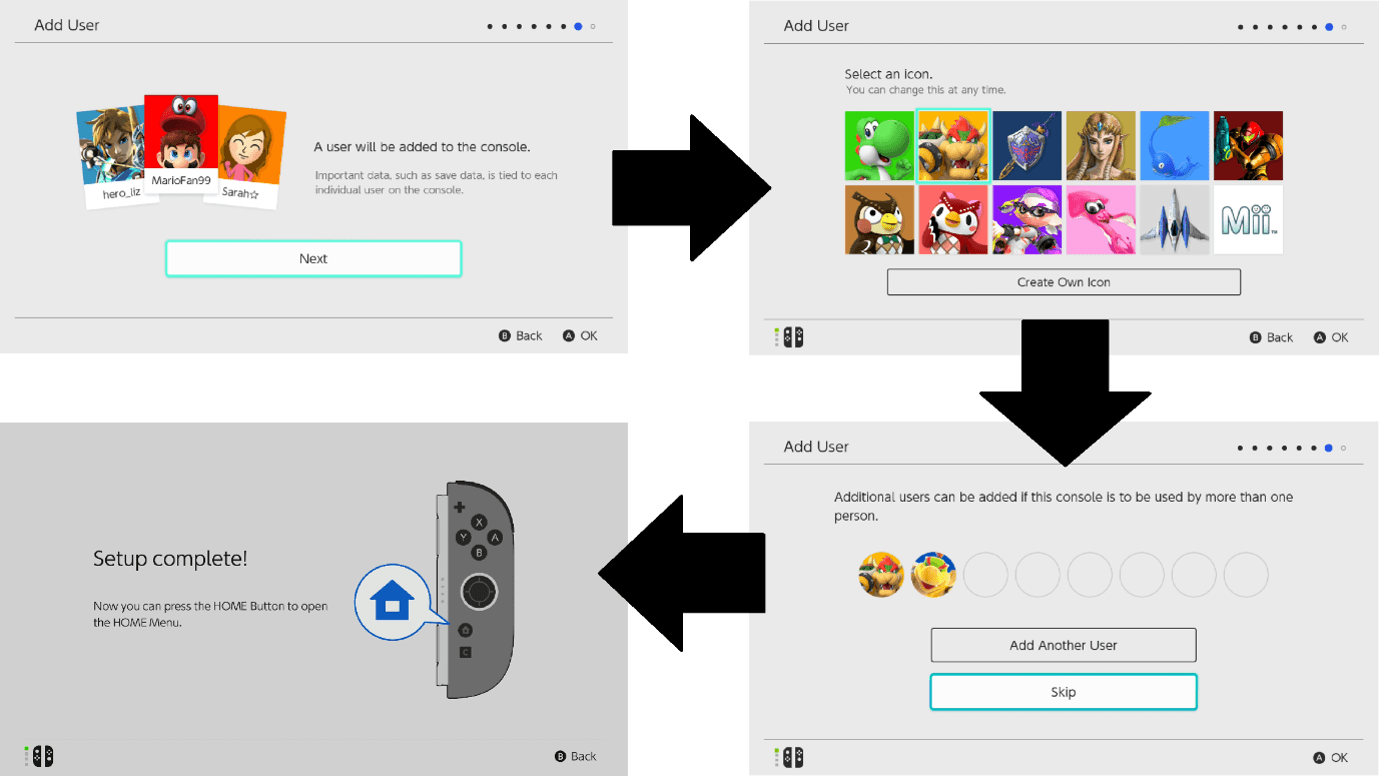
When you first switch on your Nintendo Switch 2 or Nintendo Switch console you will be prompted to add users. If you will also be using the console, add yourself as a user as well as any children. If you are going from a Nintendo Switch to Nintendo Switch 2, you can transfer the user data from the previous console.
2. Set up accounts
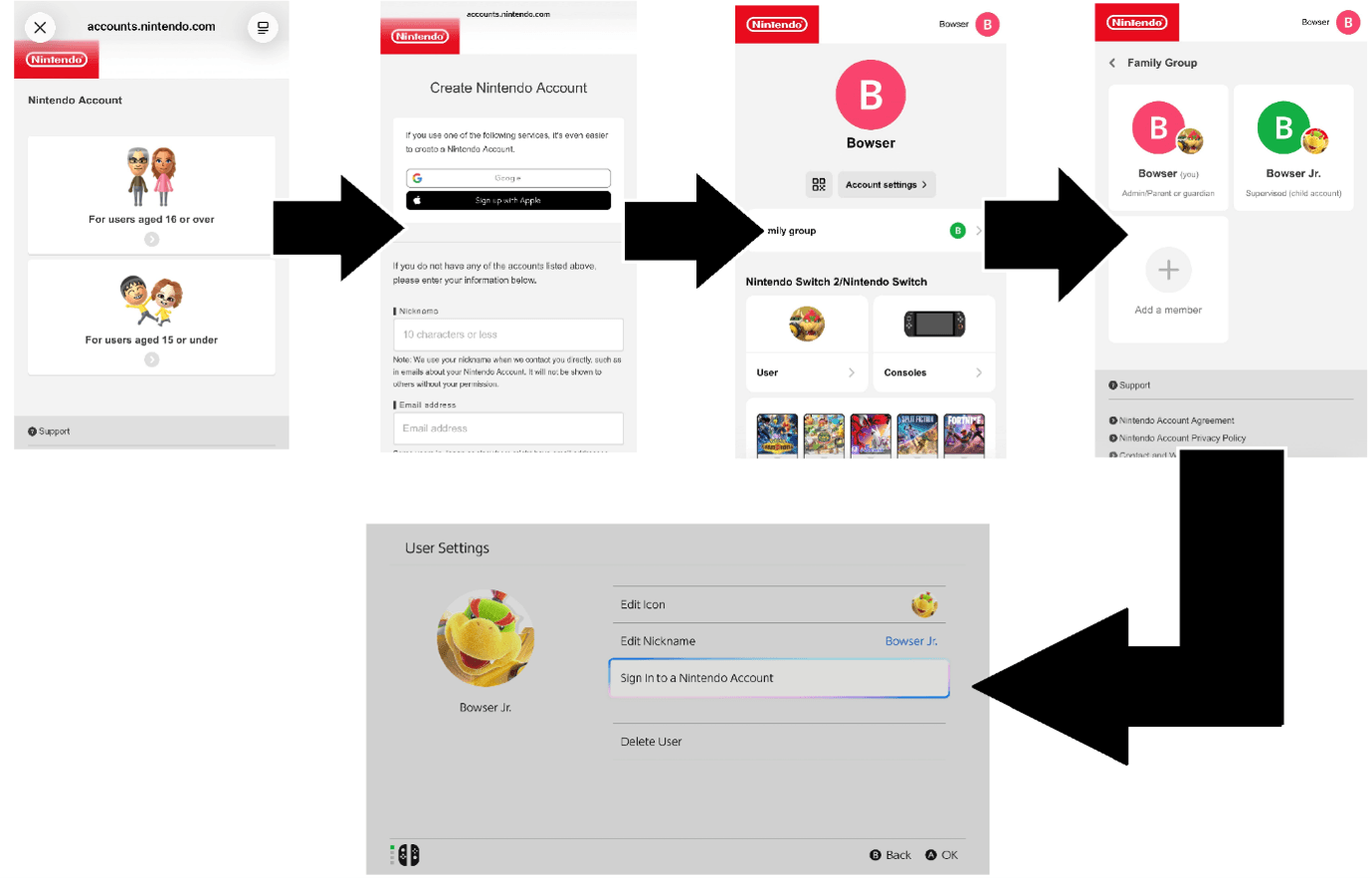
At least one parent/guardian needs their own Nintendo Account first, before setting up parental controls. Nintendo Accounts are free of charge. If you do not have a Nintendo Account already, you can get one using a web browser at accounts.nintendo.com.
Once you have your own Nintendo Account, create accounts for any children under 16 by adding them as members to your Family Group. You can also supervise the accounts of any over-16s in the same way.
Once you have set up the required Nintendo Accounts, these must be linked to the users you previously set up on the console.
3. Set up parental controls
Please note that, unlike Xbox and PlayStation, parental control restrictions on Nintendo Switch 2/Nintendo Switch apply to the whole console rather than a specific user.
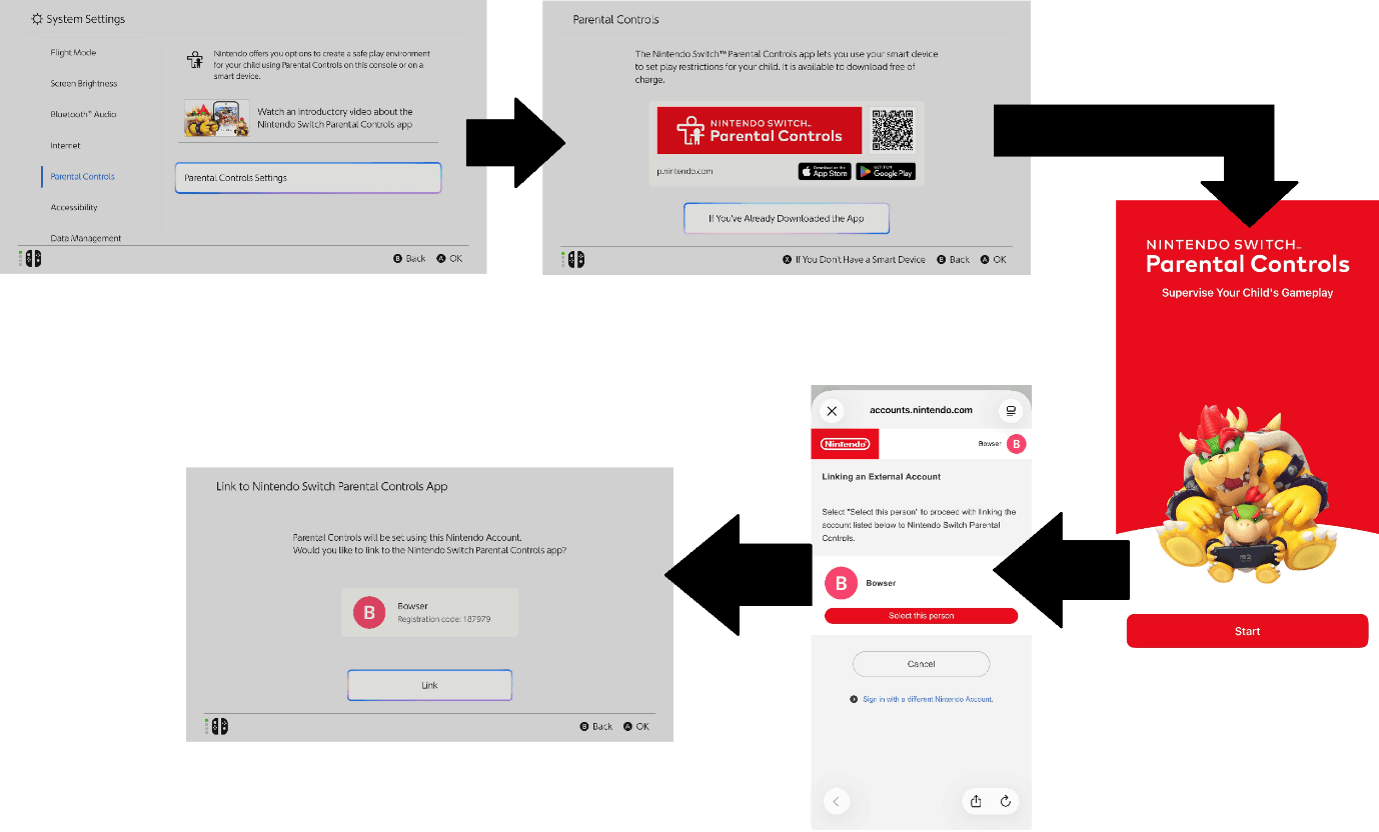
You can set some parental controls directly on the console (restricting access to software according to its age rating and disabling communication features). Alternatively, the Nintendo Switch Parental Controls smart device app offers many more options.
The app lets you set restrictions as you would on the console but also lets you check what games your children are playing, and for how long, and set play time limits.
Follow the Parental Controls instructions in the console’s System Settings to link the app with the console. From then on, you can set all parental controls remotely with the app. To disable parental controls temporarily, select the ‘On’ button at the top of the HOME menu and enter the parental controls PIN code.
4. Set time limits, GameChat access
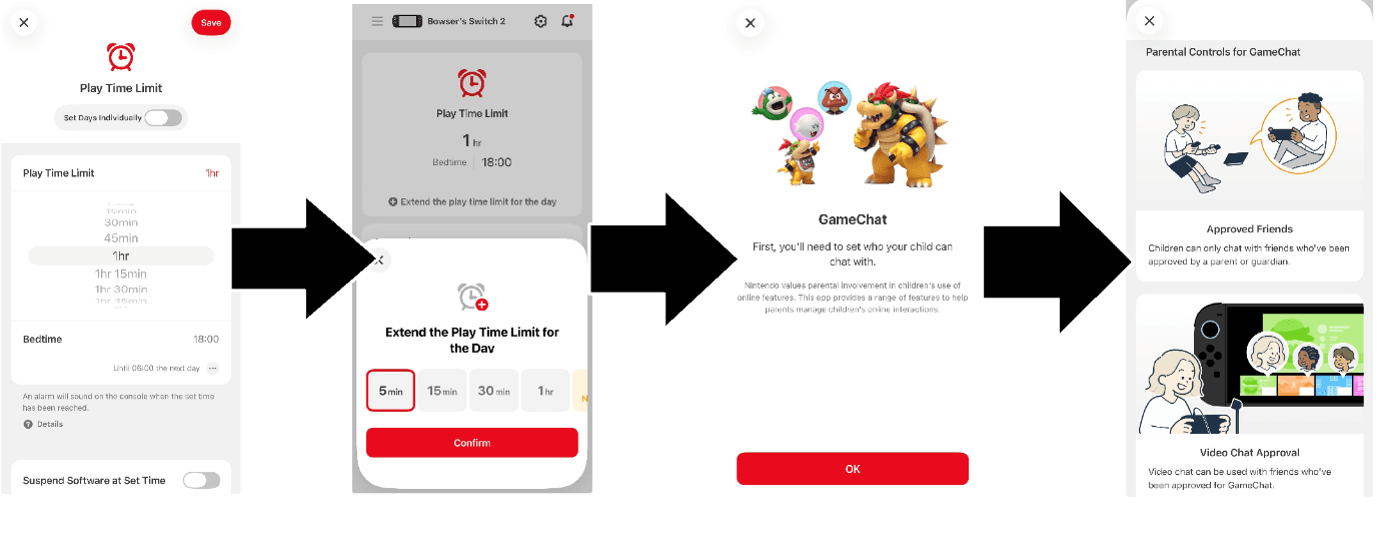
With the Nintendo Switch Parental Controls app, you can set a Play Time Limit to restrict how long the console can be used. You can set individual limits for each day, to allow more time at weekends, for example. A Bedtime setting allows you to set a period when the child cannot play, between bedtime and the next morning.
For both settings, you can choose an alarm that notifies the child that it’s time to stop playing, or the console can turn off so that the child can’t play anymore that day. If a child wants more time, you can extend that day’s limit.
The Nintendo Switch Parental Controls app is required to enable children to use GameChat (voice/video chat available only on Nintendo Switch 2). Please note that a paid Nintendo Switch Online membership is required.
Once GameChat is set up, parents can decide which friends their children can chat with and can allow the use of a video camera (a USB camera, sold separately, is required).
5. Set spending limits, Nintendo eShop access
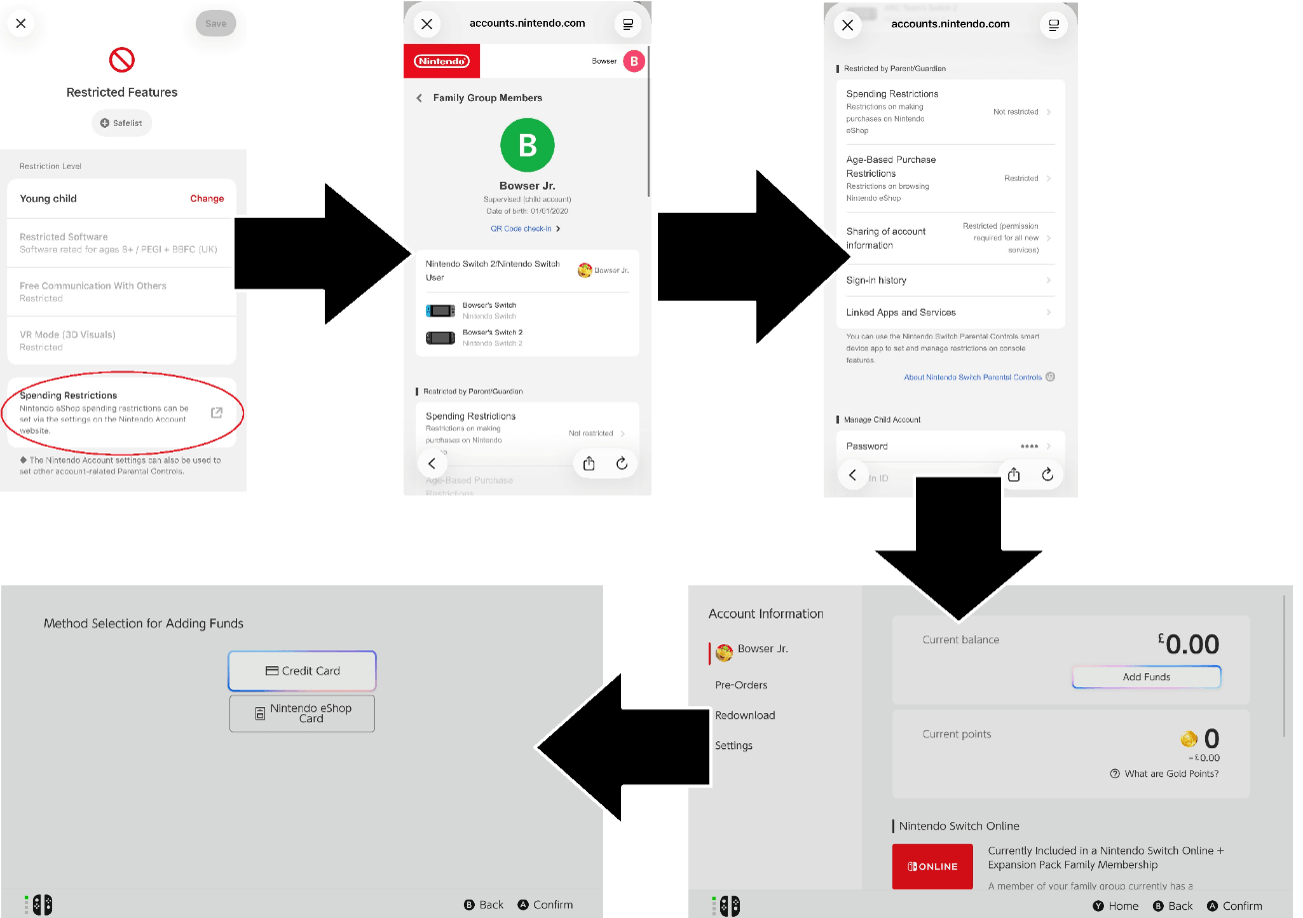
Since many games can be purchased online these days, you may wish to set restrictions on how children use Nintendo eShop. Spending restrictions are available in the Family Group settings of your Nintendo Account via a web browser or the Nintendo Switch Parental Controls app.
The first option restricts all spending in Nintendo eShop, preventing any online purchases. The second option restricts browsing in Nintendo eShop based on the child’s age, only allowing purchase of content with a suitable PEGI rating.
Payment information cannot be saved to a child’s account, so parents will either need to authorise each purchase or top-up a child’s account with a specific amount using a credit card or prepaid Nintendo eShop card.